FAQ / Who can see analytics data?
1. By default, the Analytics module is displayed to users who have been assigned the ‘Executive’ and ‘Accountant’ permission sets.
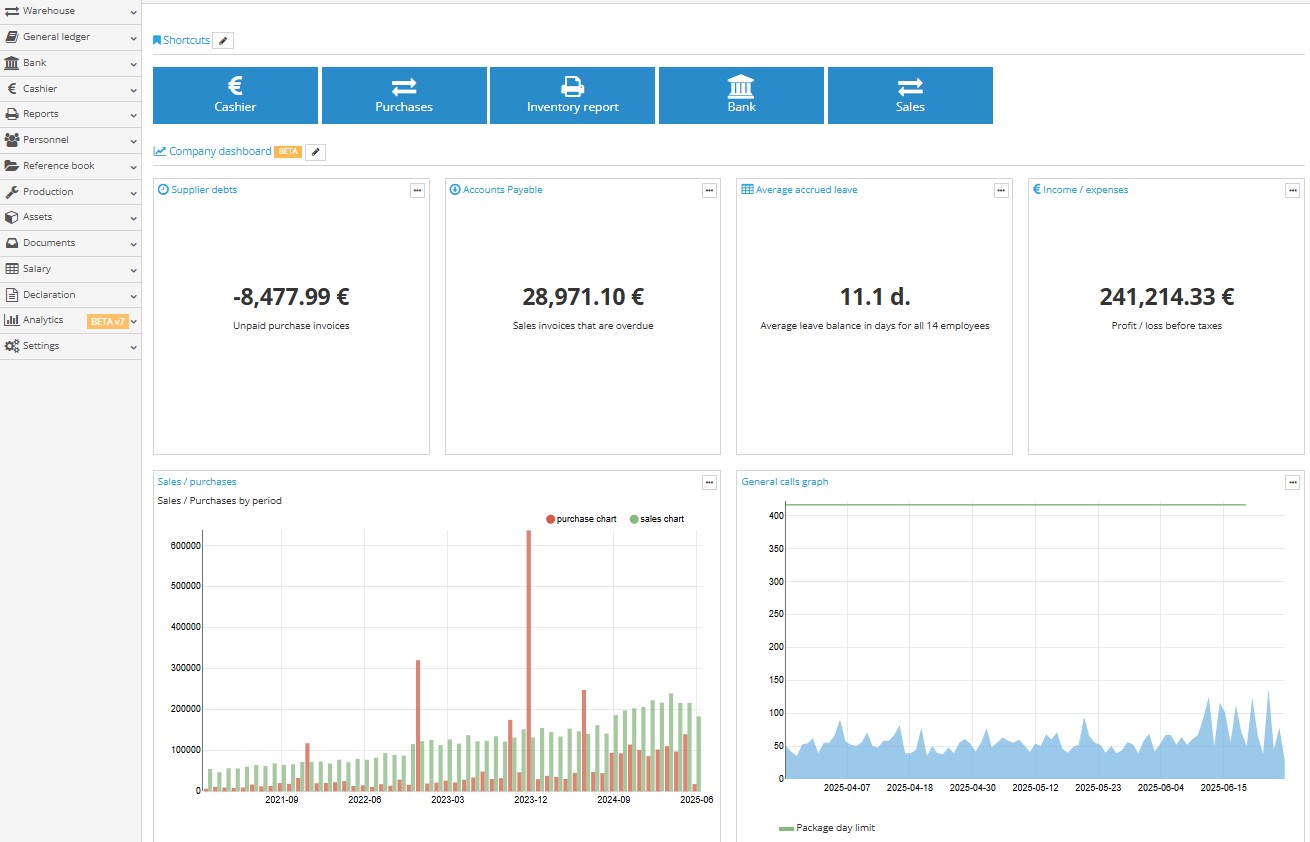
2. The ‘Company Dashboard’ is displayed on the company's desktop, with data displayed according to the permissions granted to the user, so that each user sees only the information that is available to them.
"Company dashboard" on the desktop can be easily customised by users to change the layout, size or remove fields that are not needed. To make these changes, the pencil icon should be clicked on the ‘Company Dashboard’.
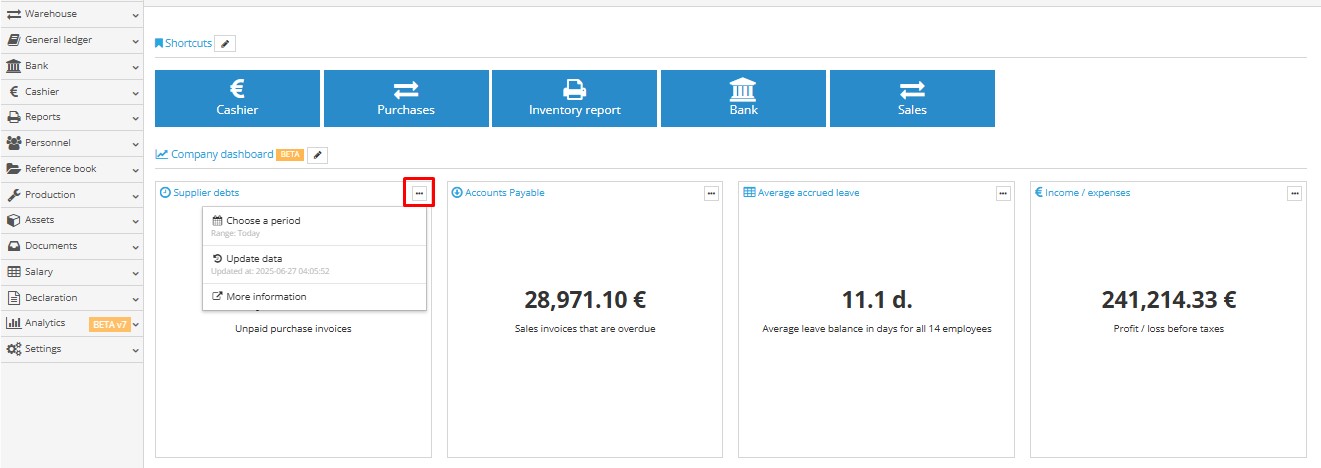
3. Data updates occur automatically by default once per day (i.e., at night). However, if faster updates are needed, users have the option to manually update the data by clicking the update button:
4. If the user is using:
- a custom set of permissions – it is sufficient to modify it. Access to the "Analytics" module is granted by the database administrator by selecting this module in the permissions set;
- System set of permissions, but access to "Analytics" is not granted – a new custom set of permissions must be created, as standard sets cannot be modified.
4.1 Go to Account → Companies and Users;
4.2 Check which permission set is assigned to the user;
4.3 To create a new permission set – in the "Permission Sets" section, select "Copy Permission Set", choose the existing set and the company where it will be saved.
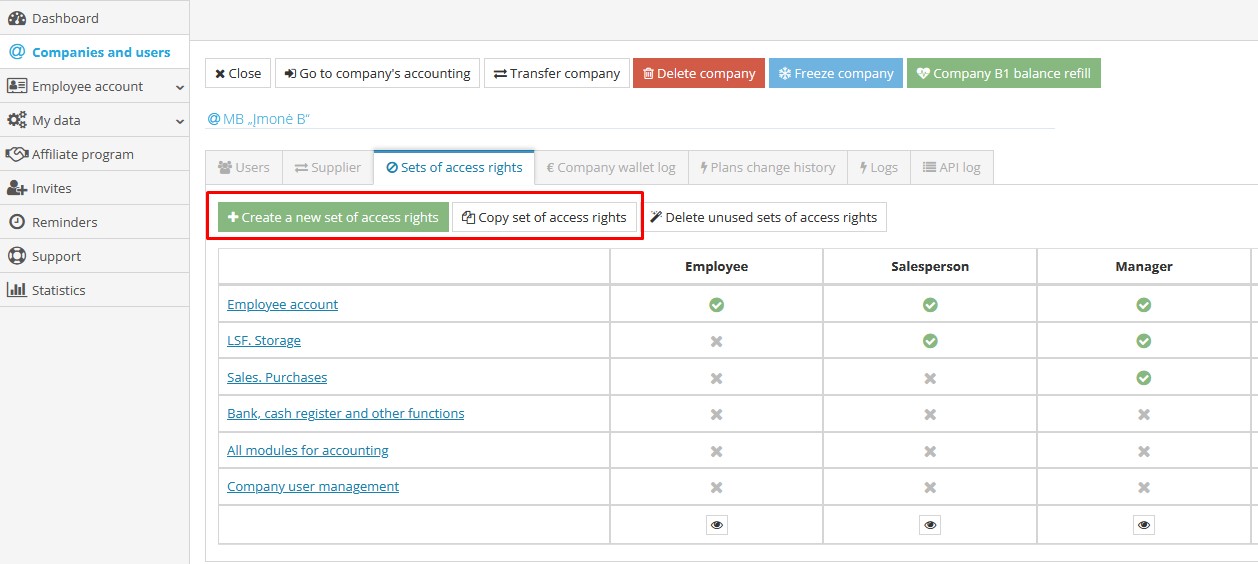
4.4 Edit the set and add a check mark for the Analytics module.
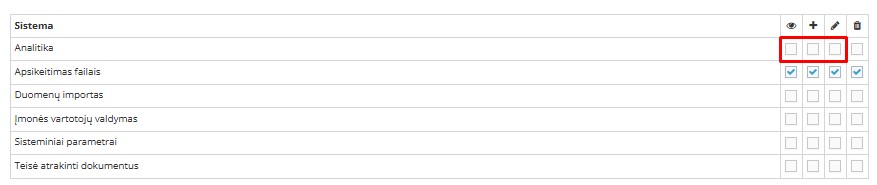
4.5 Save the changes;
4.6 In the "Users" section, assign the new permission set with Analytics to the employee:
To change a user's permissions, click the blue "Change set of access rights" button, select the appropriate set from the list, and click "Save".
Note: Permissions can be assigned or changed by a user who has the "Executive" permission set.
"System permission sets" cannot be modified — they can only be viewed by clicking the button  .
.