FAQ / How do I import a bank statement to my bank?
Bank → Statement Import
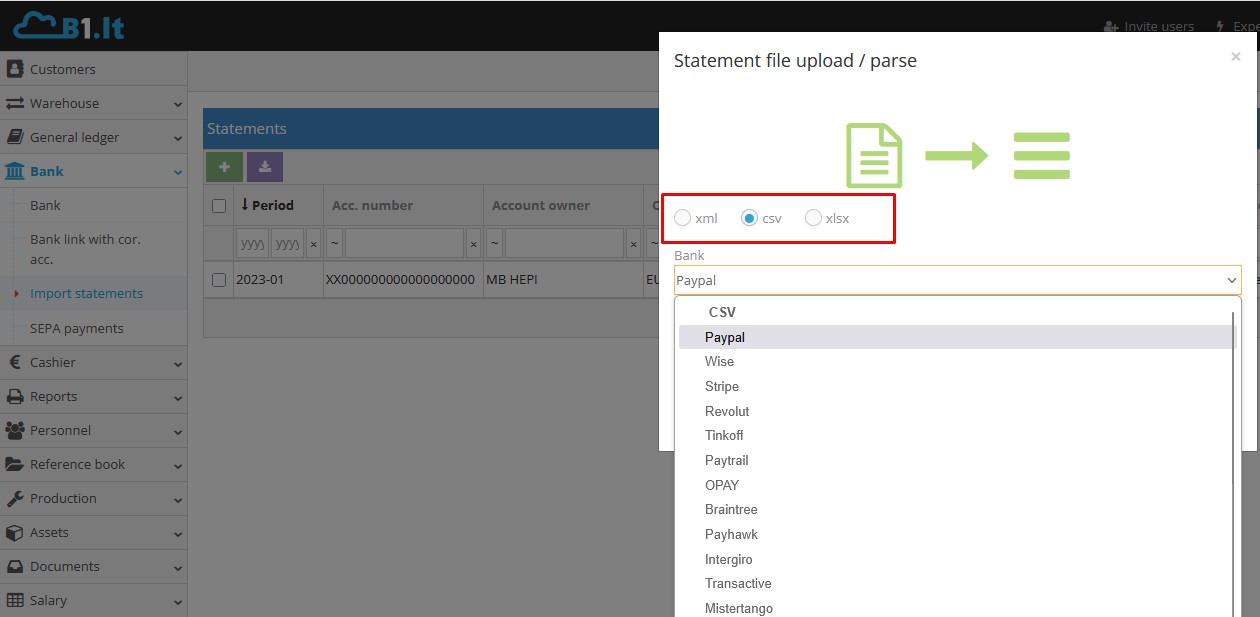
Import your bank statement into the B1.lt system. Click the "Upload statement file" button. In the pop-up window, under the "Bank" section, select the bank from which you want to import the statement. In the "File" section, upload the file generated by the bank's system.
Supported bank statement formats:
- XML (SEPA) format supported by: Paysera, Swedbank, SEB, Citadele, Šiaulių Bankas, URBO, Danske Bank, Luminor (DnB), Luminor (Nordea), Vialet, OPAY, Meridian Trade Bank, LKU, MakeCommerce (Maksekeskus), smeBank, Kreda, iBSETTLE, Robobank.
- CSV format supported by: PayPal, Wise, Stripe, Revolut, Paytrail, Braintree, Payhawk, Intergiro, Transactive, Mistertango.
- Excel format supported by: all other banks not listed above.
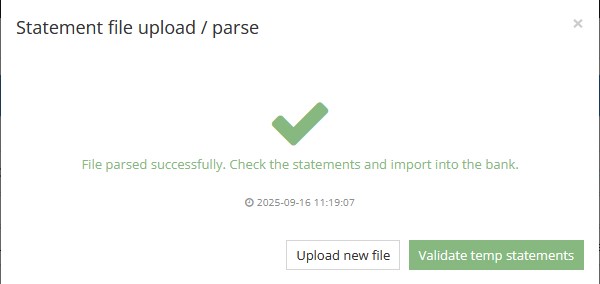
If the file is uploaded successfully, a confirmation message will appear. Click the "Select statements" button to view all imported files. To upload a new file, click "Upload new file."
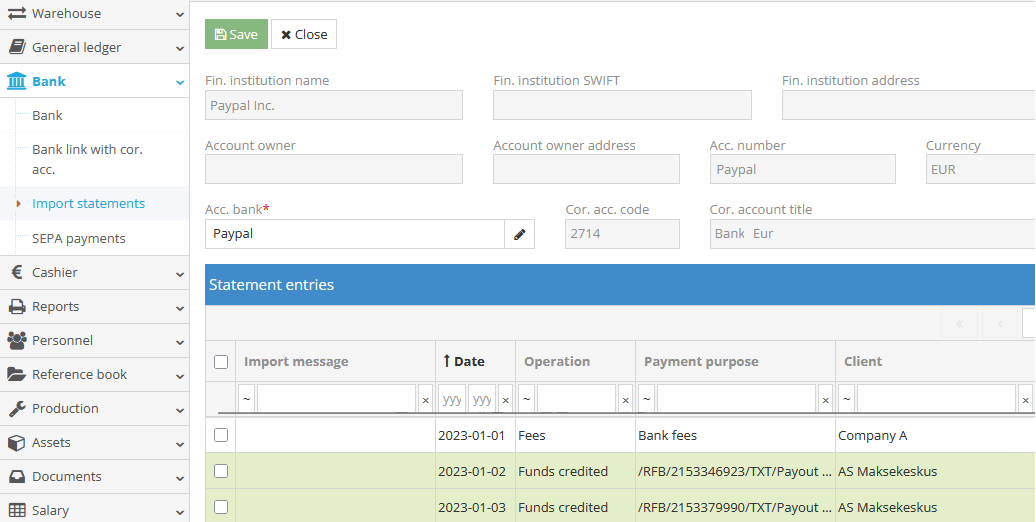
The program splits the imported bank statement by month. To manage entries, double-click on a specific imported file. In the opened window, review and edit the entries:
Accounting bank (field "Acc. bank") — select the corresponding bank account from the chart of banks.
Client, correspondent account — you can adjust each line item as needed: change the client or correspondent account. By default, values are pulled from Settings → Settings → Data exchange. If you change the correspondent account, the system will remember this selection for future imports. If a correspondent account is not specified, the data will not be imported into the bank form.
Color indicators: Green – credit, White – debit, Red – unidentified client or correspondent account.
Note: If the bank statement doesn't include the company's code and the client's name doesn’t match the name provided in the statement, a new client record will be created. However, if a payment account is provided for the client, the system will also search based on that account.
Only after organizing incoming and outgoing payments can they be transferred to accounting.
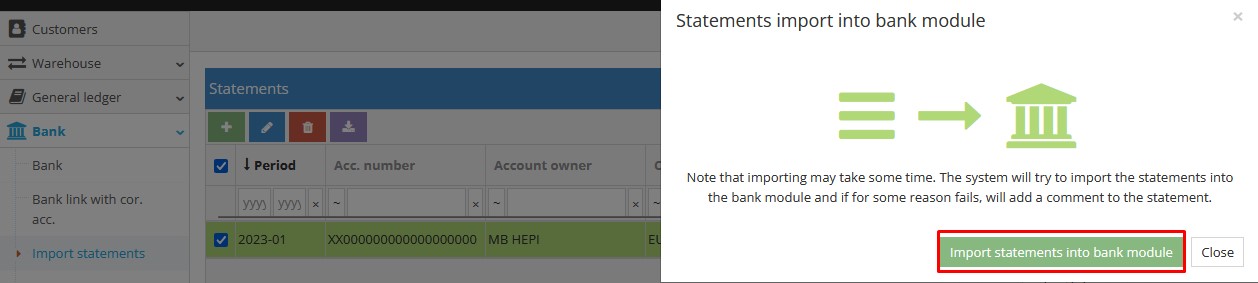
To import the file into the Bank → Bank module, select the entry and click the "Import" button.
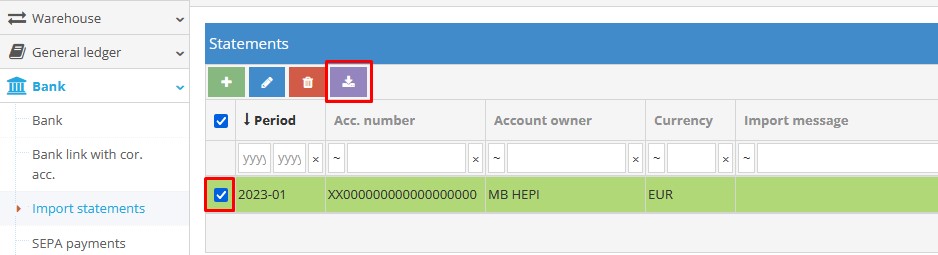
A table will appear and than click "Import statements into the bank module."
Once the entries are imported, a message will show how many entries were successfully processed. The imported entries will disappear from the list to avoid duplicates — the same entries will not be imported twice.
If the bank provides a code that the system cannot recognize, that specific line will not be imported.
This tool is intended as an aid, but it is the responsibility of the relevant staff member to verify the accuracy of the imported bank entries.
Note: As long as the file remains in the Bank → Import Statement module, the entries are not yet included in accounting.