FAQ / How do I activate automatic import of bank statements via NeoPay?
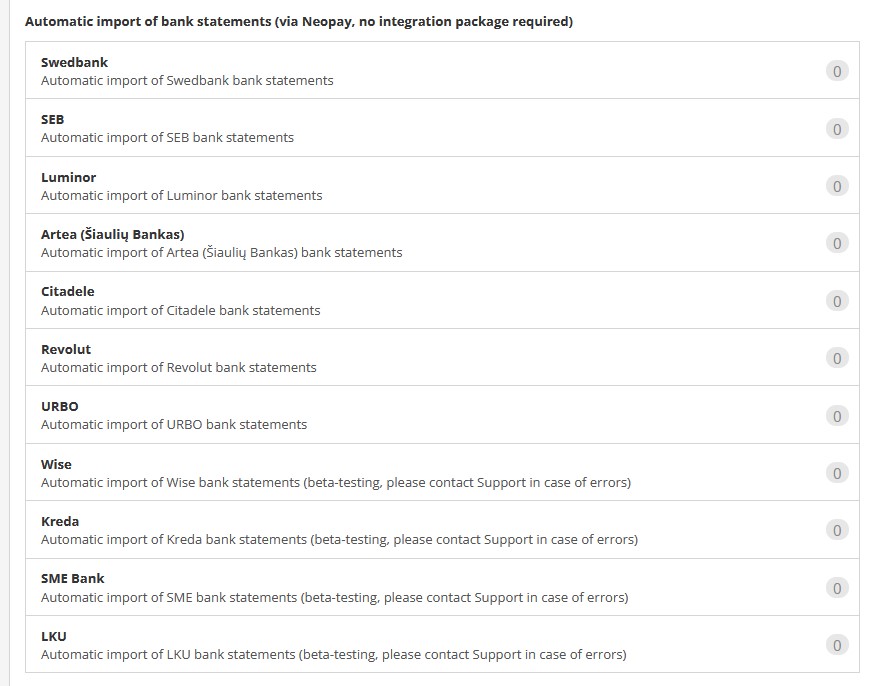
Settings → Integrations → Automatic Bank Statement Import (via Neopay)
1. Click on the required bank integration:- Swedbank;
- SEB;
- Luminor;
- Artea;
- Citadele;
- Revolut;
- Urbo;
- Wise,
- SME Bank;
- KREDA;
- LKU.
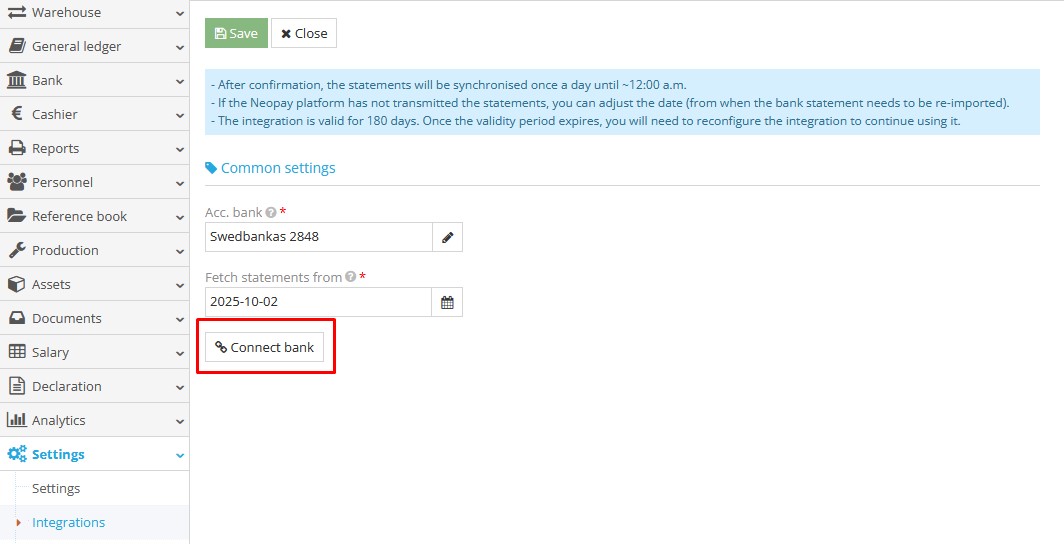
- In the “Accounting Bank” field, select the bank account by clicking the "Pencil" icon. Once the “Accounting Bank” is selected, all statements from the company’s bank accounts will be imported after integration, provided those accounts are filled in under Bank → Bank link with corresponding account in the accounting system.
Note: Ensure that the bank account number is filled in correctly for the integration to work successfully. - In the “Synchronize statements from” field, set the date from which to start importing bank statements.
- After completing the fields, click “Connect bank”.
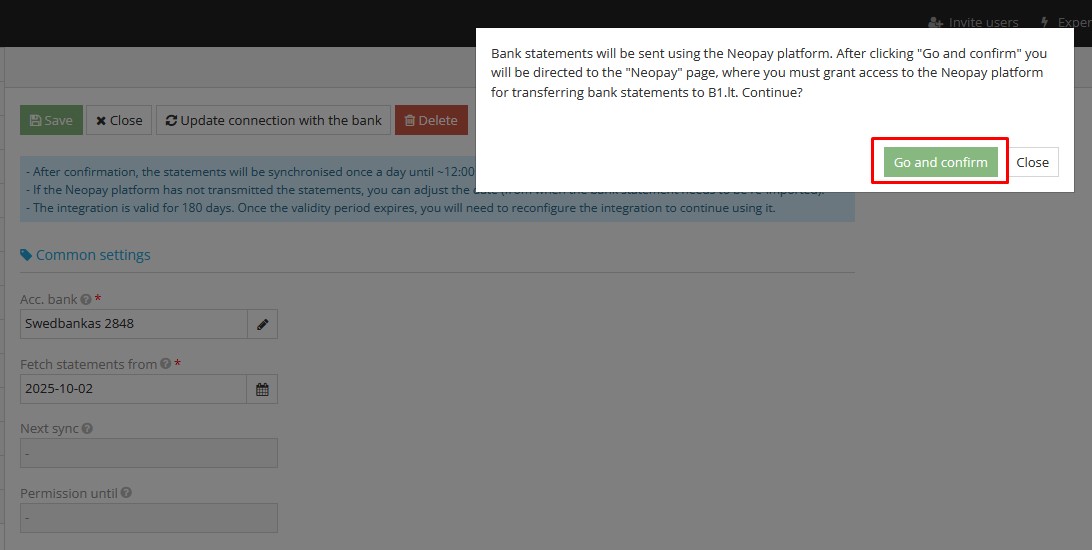
3. After saving, a message will appear stating that Neopay requires user confirmation. iš vartotojo. Click “Go and Confirm” to be redirected to the Neopay system website. If you agree, click “Go and Confirm” again.
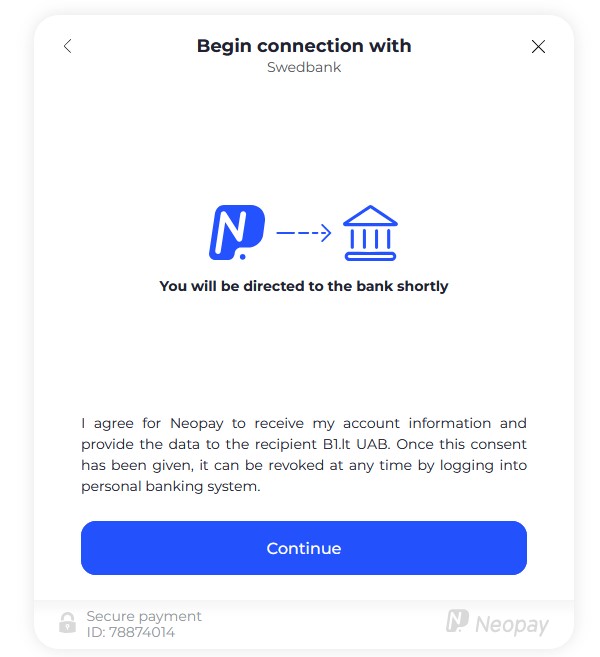
4. After these steps, the program will redirect you to the Neopay platform. In the opened window, click “Continue”.
5. A bank login window will open, where you must enter your bank login credentials and click “Login”.
After entering the credentials, the user will be redirected from the bank system back to the accounting program.
From the following day, bank statements will be sent automatically to the accounting system only if there has been activity in the account on that day. All statements from the company’s accounts connected to that bank will be imported, as long as they are filled in under Bank → Bank link with corresponding account in the system.
In the accounting system, bank statements are automatically imported every morning (the import may take until 12:00 PM) under: Bank → Statement Import. You’ll just need to review the entries and import them into the Bank module. The program creates a bank statement file (covering one month), which is updated automatically every day.
Note:
If a new settlement account is opened in the same bank and you want to import statements from all accounts, you must delete the existing integration link and repeat all steps in this guide.
As long as the file is located under Bank → Statement Import, the entries are not yet included in accounting, meaning they do not have corresponding accounts. Only after checking the banking transactions and clicking the Import button will the transactions be transferred to
Bank → Bank, with the appropriate corresponding accounts assigned.