FAQ / How to send a Sodra declaration directly?
To send Sodra reports directly to the company’s Sodra account, follow these steps:
1. Set up Sodra login credentials:
Account → My Data → Settings
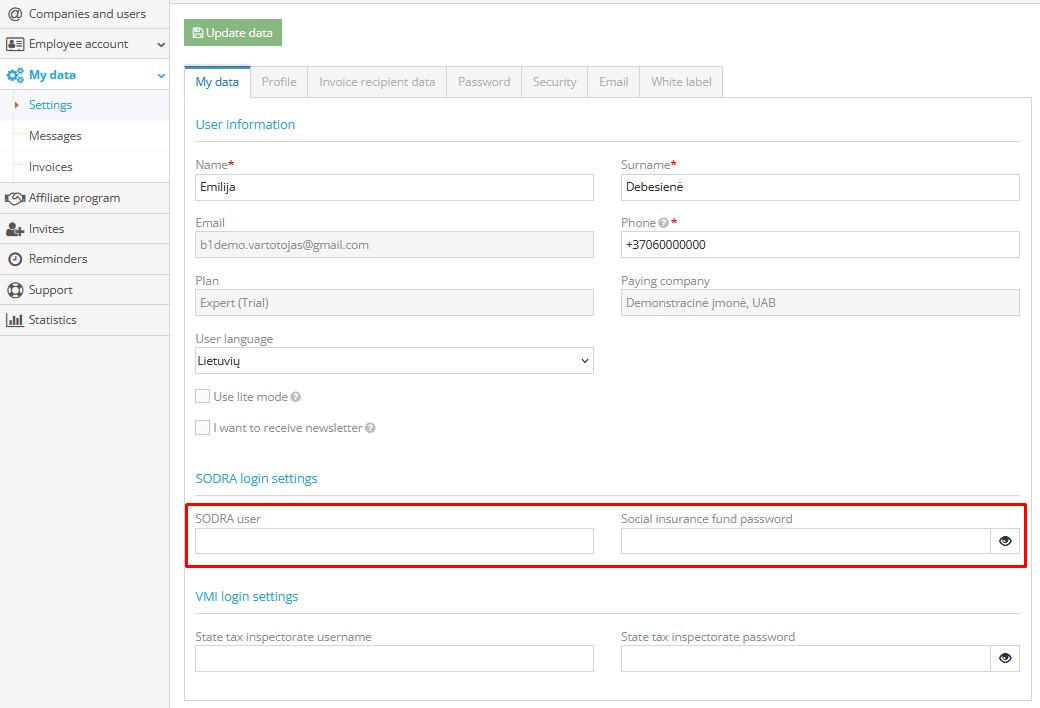
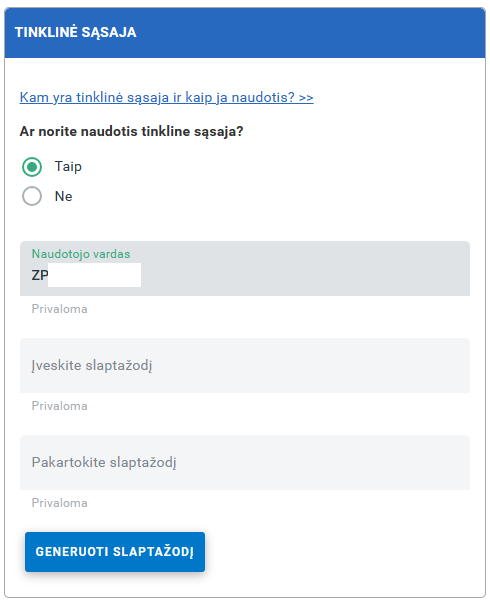
You need to generate login credentials on the official Sodra website. Once logged into your company account, go to “My Settings” and:
1.1 Check the option “Agree to use the web interface?”
1.2. Enter your password manually or use the “Generate Password” function. Please note: The generated password must not contain the “&” symbol.
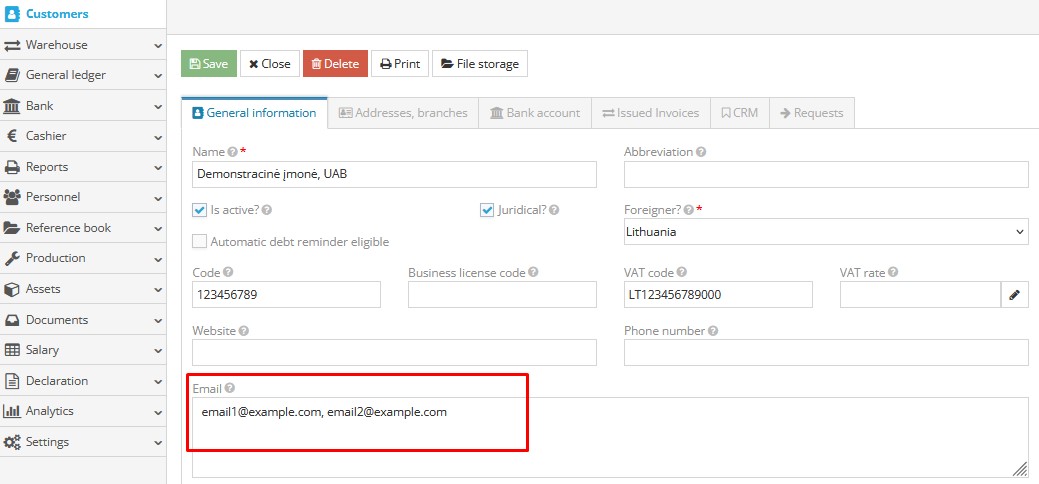
2. Verify your company details in Customers module
Ensure that your email address is entered correctly. If there are multiple email addresses, they must be separated without pressing Enter, for example:
REPORT GENERATION AND SUBMISSION
1. Declarations → Generate Declarations
Select the appropriate form from the list and fill in the required data.
2. Click: "Send to SODRA"
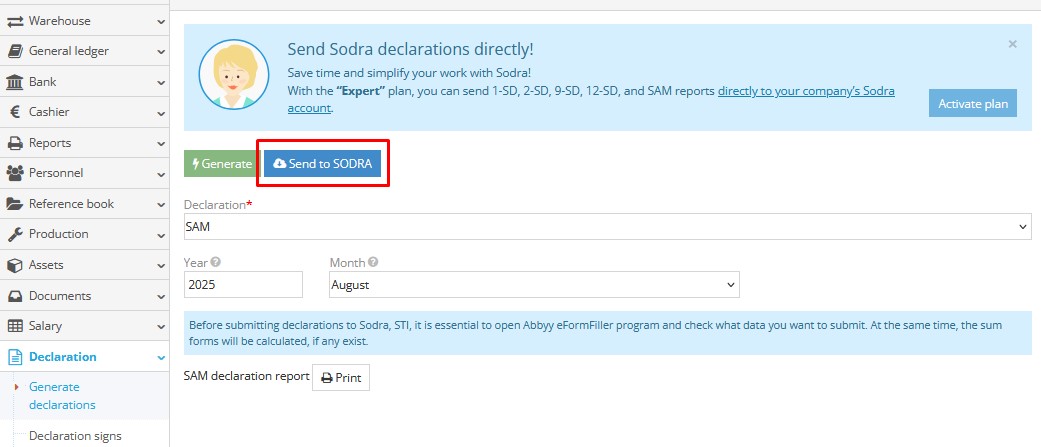
3. The report is sent to Sodra and saved in: Forms and Templates (Drafts)

4. Open the uploaded declaration to edit any fields (according to company policy) and submit the form.
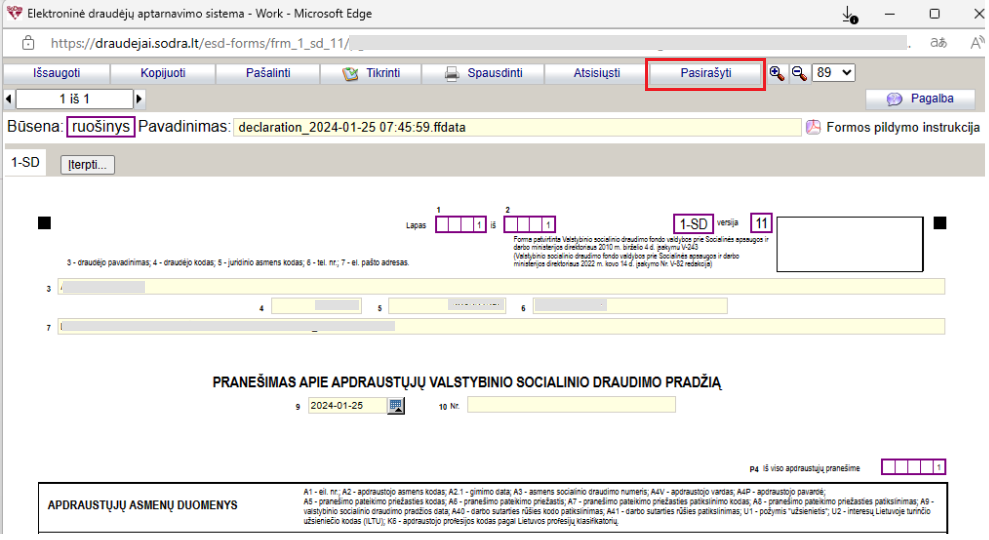
5. Information about the submitted declaration is saved in:
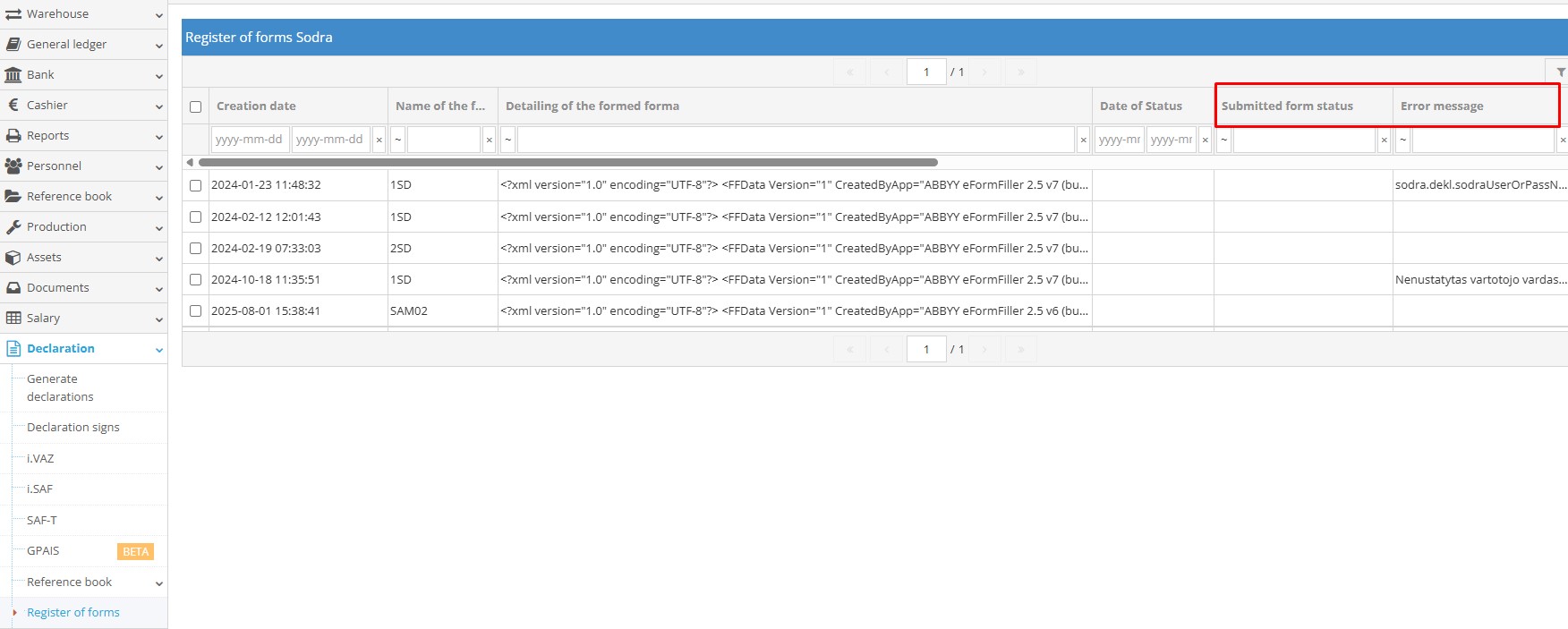
Declarations → Register of forms
Status updates must be done manually.
You can also monitor the report status in the Sodra Form Register under the column: "Submitted Form Status" If there are errors in the submission, an error message will be displayed.
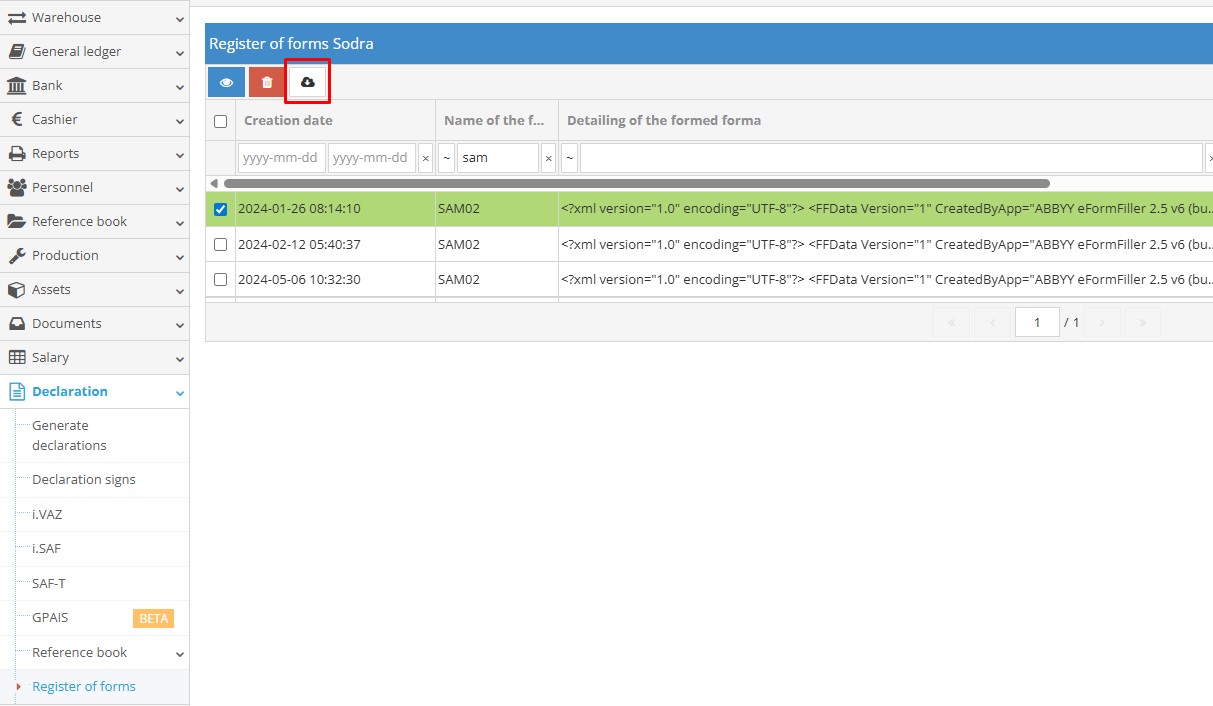
You can monitor the submitted report status in the Sodra Form Register, under the column "Submitted Form Status". If the submitted document contains errors, an error message will also be displayed.